
Auto-Approve
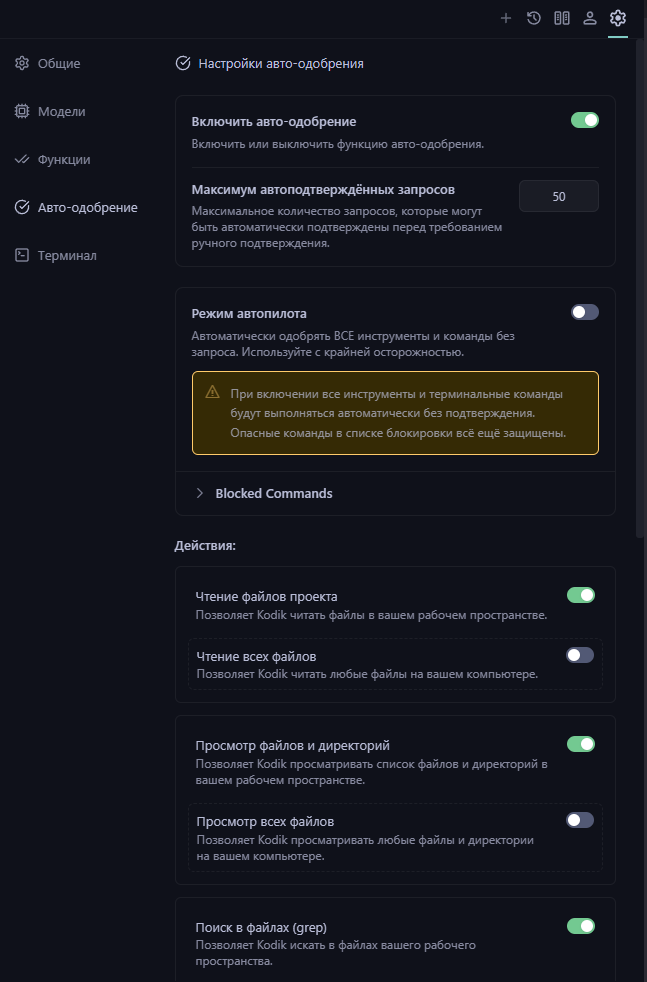
The Auto-Approve menu lets you set granular permissions for what Kodik does automatically, without interrupting you with confirmation prompts.
How It Works
Section titled “How It Works”Auto-approve is off by default: Kodik asks for your confirmation before every tool call, including reading or editing files. Once enabled, you configure fine-grained permissions separately for files inside the workspace and outside it.
Autopilot Mode
Section titled “Autopilot Mode”Autopilot (autopilotMode) approves all actions and terminal commands without exception, other than blocked commands (see below). Enable it only in isolated environments or when you are comfortable giving Kodik full control.
In Autopilot mode, sensitive-file protection is also bypassed — Kodik can edit sensitive files without additional confirmation.
Granular Permissions
Section titled “Granular Permissions”Each permission applies separately for files inside the workspace and outside it (...Externally).
| Permission | Tool | Default |
|---|---|---|
Read project files (readFiles) | read_file | on |
Read all files (readFilesExternally) | read_file outside workspace | off |
List files and directories (listFiles) | glob | on |
List all files (listFilesExternally) | glob outside workspace | off |
Search in files (rg) | rg (ripgrep) | on |
Search in all files (rgExternally) | rg outside workspace | off |
Fetch web content (webFetch) | web_fetch | off |
Search the web (webSearch) | web_search | off |
Edit project files (editFiles) | edit_file, edit_files | off |
Edit all files (editFilesExternally) | edit_file outside workspace | off |
Edit notebooks (editNotebooks) | edit_notebook | off |
Edit notebooks everywhere (editNotebooksExternally) | edit_notebook outside workspace | off |
Edit sensitive files (editSensitiveFiles) | overrides pattern protection | off |
An
...Externallypermission is automatically disabled if the corresponding base permission is off.editSensitiveFilesis disabled wheneditFilesis off.
Command Patterns
Section titled “Command Patterns”Command patterns (commandPatterns) let you approve specific terminal commands without enabling Autopilot. Each pattern supports the * wildcard (e.g. npm run *, git *). Individual patterns can be temporarily disabled without being deleted.
Commands are matched case-insensitively from the start of the string.
Blocked Commands
Section titled “Blocked Commands”Some commands are never auto-approved — even in Autopilot mode. The default blocked list includes:
- File deletion:
rm *,sudo rm *,del *,rd *,rmdir *,Remove-Item *,ri * - Git clean:
git clean* - Find with delete:
find * -delete*,find * -exec rm* - Disk destruction:
mkfs*,dd if=*,format * - System power:
shutdown*,reboot* - Other dangerous:
> /dev/*,:(){:|:&};:,chmod -R 777 /,chown -R *:* /
You can edit this list in settings — add or remove patterns to match your environment.
Sensitive Files
Section titled “Sensitive Files”Kodik additionally protects files that match sensitive file patterns, even when editing is enabled (unless editSensitiveFiles is explicitly turned on). The default protected patterns include:
- Secrets and environment variables:
**/.env,**/.env.*,**/secrets.*,**/secret.*,**/*secret*,**/*password*,**/*credentials* - Package lock files:
**/package.json,**/package-lock.json,**/yarn.lock,**/pnpm-lock.yaml,**/composer.lock,**/Gemfile.lock,**/Pipfile.lock,**/poetry.lock,**/cargo.lock - Configuration files:
**/*.config.js/ts/mjs/cjs/json,**/tsconfig.json,**/jsconfig.json,**/babel.config.*,**/webpack.config.*,**/vite.config.*,**/rollup.config.*,**/.eslintrc.*,**/.prettierrc.* - Git files:
**/.gitignore,**/.gitattributes,**/.gitmodules,**/.git/** - Docker and deployment:
**/Dockerfile,**/docker-compose.yml/yaml,**/.dockerignore,**/kubernetes/**/*.yaml - CI/CD:
**/.github/workflows/**,**/.gitlab-ci.yml,**/.circleci/**,**/.travis.yml,**/azure-pipelines.yml,**/Jenkinsfile - IDE files:
**/.vscode/**,**/.idea/**,**/.vs/** - Database migrations:
**/migrations/**,**/migrate/** - All dotfiles:
**/.*
You can extend or narrow this list in settings.
Kodik Configuration Files
Section titled “Kodik Configuration Files”Kodik can always read its own configuration assets (skills, commands, rules, hooks, sub-agents) without any auto-approve permissions — this is independent of your settings.
Best Practices
Section titled “Best Practices”For most workflows, start conservatively:
- Auto-approve reading project files (
readFiles,listFiles,rg) - Set the request limit to 10–20
- Leave editing and Autopilot off
As trust in the agent grows, gradually add permissions. Tighten settings for critical production work; Autopilot is acceptable in isolated throwaway environments.