
Code Actions
Kodik adds AI commands directly to the editor context menu. Select code, right-click, and get AI assistance without leaving your workflow.
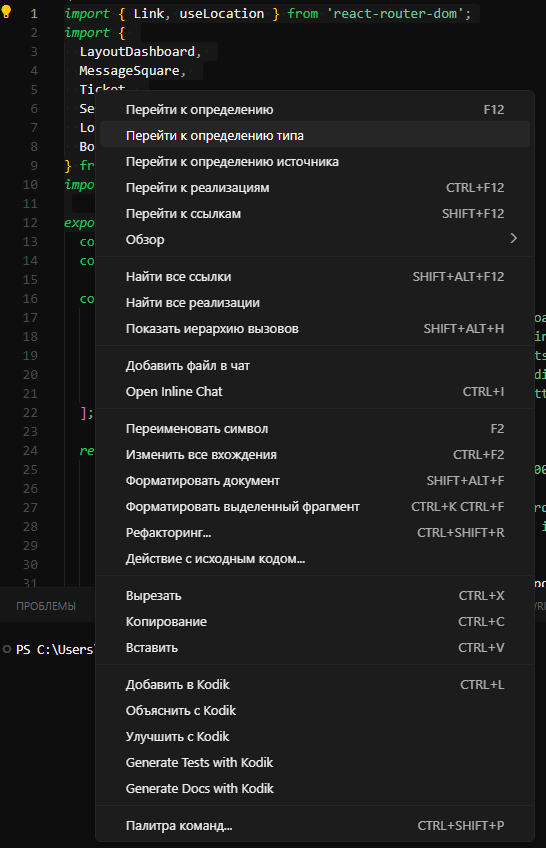
Available commands
Section titled “Available commands”All commands appear in the right-click context menu when there is a selection in the editor.
Add to Kodik (Ctrl+L / Cmd+L)
Section titled “Add to Kodik (Ctrl+L / Cmd+L)”Sends the selected code to the Kodik chat panel along with the file path and programming language. Use this command to:
- Ask a question about a specific code snippet
- Request an improvement or optimization
- Get an explanation of complex logic
A keyboard shortcut is available for this command — see keyboard shortcuts for details.
Explain Code
Section titled “Explain Code”Asks the agent to explain what the selected snippet does. The result appears in the chat panel.
Improve Code
Section titled “Improve Code”Asks the agent to suggest improvements for the selected code: readability, performance, or adherence to best practices.
Generate Tests
Section titled “Generate Tests”Generates unit tests for the selected code. The agent detects the testing framework in use and produces appropriate tests.
Generate Docs
Section titled “Generate Docs”Creates documentation (JSDoc, docstring, etc.) for the selected code based on the programming language.
How to use
Section titled “How to use”- Select the code you want to work with in the editor.
- Right-click to open the context menu.
- Choose one of the Kodik commands.
- Review the response in the Kodik chat panel.
After receiving a response you can ask a follow-up question, request changes, or apply the suggested edits to your code.
- The Explain, Improve, Generate Tests, and Generate Docs commands require an active selection.
- Add to Kodik also has a keyboard shortcut (
Ctrl+L/Cmd+L) while code is selected, so you can use it without the mouse. - The anonymizer commands (Mark as Sensitive / Unmark) also appear in the context menu when the feature is enabled. See keyboard shortcuts for details.