Keyboard Shortcuts
Below are the default Kodik keyboard shortcuts. Native commands can be reassigned in the VS Code keyboard shortcut editor; chat composer shortcuts work while the Kodik chat input is active.
Shortcuts table
Section titled “Shortcuts table”| Action | Windows / Linux | macOS | Condition |
|---|---|---|---|
| Reveal and focus chat | Ctrl+Alt+C | Cmd+Alt+C | Anywhere |
| Toggle chat visibility | Ctrl+L | Cmd+L | Editor has no selection |
| Add selection to chat | Ctrl+L | Cmd+L | Editor has selection |
| Start a new chat | Ctrl+Alt+N | Cmd+Alt+N | Chat composer active |
| Open the model menu | Ctrl+Alt+M | Cmd+Alt+M | Chat composer active |
| Add files or folders | Ctrl+Alt+F | Cmd+Alt+F | Chat composer active |
| Reveal folder in Explorer | Ctrl+Alt+P | Cmd+Alt+P | Anywhere |
| Open auto-approval settings | Ctrl+Alt+A | Cmd+Alt+A | Chat composer active |
| Toggle local/worktree mode | Ctrl+Alt+W | Cmd+Alt+W | Chat composer active |
| Cycle chat mode | Ctrl+Shift+A | Cmd+Shift+A | Chat composer active |
| Switch to Ask/Plan/Code/Debug/Educator | Ctrl+Alt+1 … 5 | Cmd+Alt+1 … 5 | Chat composer active |
| Move between chat and the chat sidebar | Ctrl+Alt+B | Cmd+Alt+B | Chat webview active |
| Mark selection as sensitive | Ctrl+Alt+S | Cmd+Alt+S | Selection present; anonymizer enabled |
| Unmark sensitive selection | Ctrl+Alt+U | Cmd+Alt+U | Selection is marked; anonymizer enabled |
| Keep all file changes (File Review) | Alt+K | Alt+K | File changes are pending |
| Undo all file changes (File Review) | Alt+U | Alt+U | File changes are pending |
| Review changes (File Review) | Alt+D | Alt+D | File changes are pending |
| Accept file changes (File Review) | Alt+A | Alt+A | File review active |
| Reject file changes (File Review) | Alt+R | Alt+R | File review active |
| Next change (File Review) | Alt+Right | Alt+Right | File review active |
| Previous change (File Review) | Alt+Left | Alt+Left | File review active |
| Generate commit message | (none) | (none) | Git enabled; SCM open |
Inline Chat (
Ctrl+I/Cmd+I) is a VS Code platform feature managed by the editor, not a Kodik extension keybinding.
Chat command aliases
Section titled “Chat command aliases”You can also type these aliases into the chat composer and press Enter. Kodik handles them as UI commands; they are not sent as messages to the agent.
| Alias | Action |
|---|---|
/new | Start a new chat |
/model, /models | Open the model menu |
/files, /folders, /context | Open the files/folders picker |
/approvals, /permissions | Open auto-approval settings |
/local, /worktree | Switch workspace mode |
/mode, /mode plan | Cycle mode or switch mode |
/ask, /plan, /code, /debug, /educator | Switch directly to that mode |
Customizing shortcuts
Section titled “Customizing shortcuts”To reassign a shortcut:
-
Open the keyboard shortcut editor:
Ctrl+K Ctrl+S(Windows/Linux) orCmd+K Cmd+S(macOS)- Or: File → Preferences → Keyboard Shortcuts
-
Type
kodikin the search bar to filter Kodik commands. -
Click the pencil icon next to the command you want to change.
-
Press the key combination you want to assign, then press Enter.
Keyboard-only workflow
Section titled “Keyboard-only workflow”A basic Kodik workflow without touching the mouse:
- Select code (
Shift+Arrowkeys). - Press
Ctrl+L/Cmd+Lto add it to chat, orCtrl+Alt+C/Cmd+Alt+Cto reveal and focus chat. - Use shortcuts such as
Ctrl+Alt+M/Cmd+Alt+Mfor models or/mode planto switch modes without the mouse. - Type your question and press Enter.
- Review the response and apply suggested changes.
Finding all commands
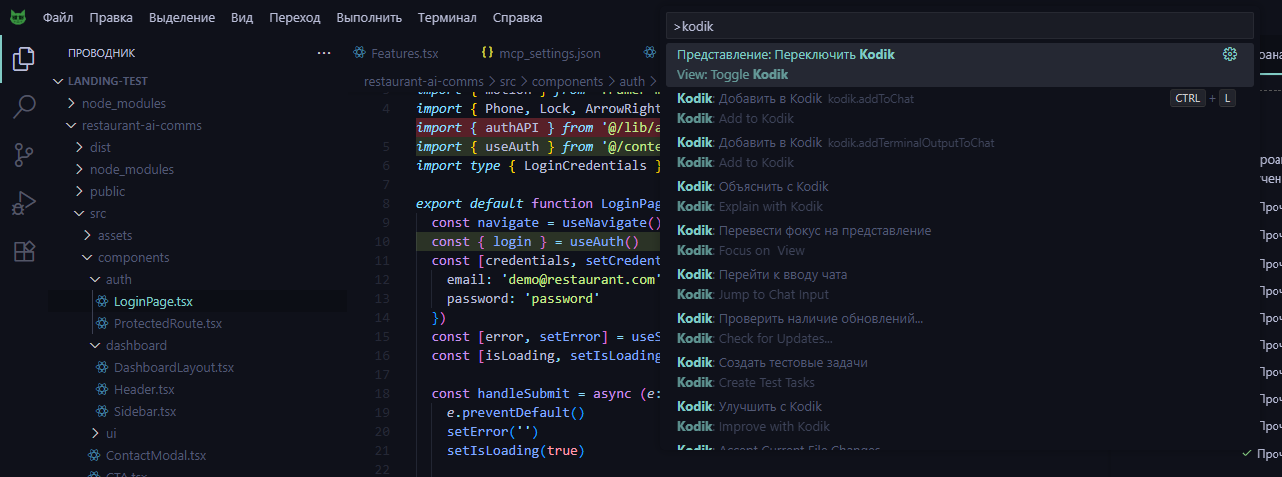
Section titled “Finding all commands”- Open the Command Palette (
Ctrl+Shift+P/Cmd+Shift+P). - Type
kodikto filter the list. - Browse the available commands.